
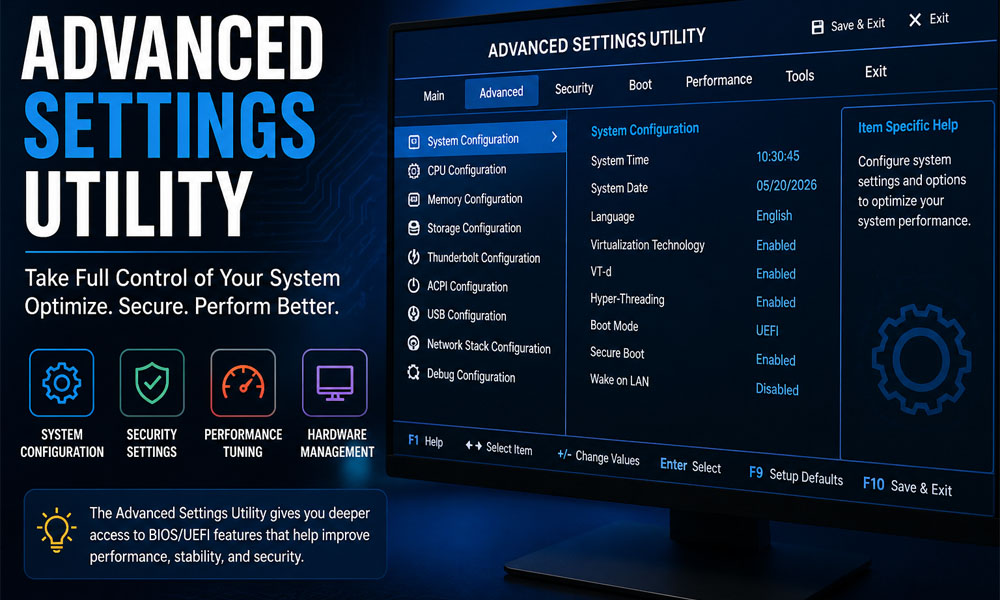
Have you ever thought about what happens when you press the power button on your computer? Most people think Windows or Linux starts first. But that’s not true. Before your system even loads, something else is already working behind the scenes.
That “something” is called firmware. It controls how your hardware starts, how it talks to other parts, and how your system behaves. And inside this firmware, there is a powerful tool called the Advanced Settings Utility. Many people don’t know about it, but it plays a very big role.
In this article, we will explore the Advanced Settings Utility in a very simple way. You will learn what it is, why it matters, how it works, and how you can use it safely. By the end, you will clearly understand this hidden tool that controls your PC.
What Is Advanced Settings Utility?
The Advanced Settings Utility is a special tool that lets you control your computer at a deeper level. It works before your operating system starts. This means it can change how your hardware behaves right from the beginning.
Most people only see the normal BIOS or UEFI screen. But the Advanced Settings Utility goes beyond that. It gives access to extra settings that are usually hidden or not easy to reach. These settings can control things like CPU behavior, memory use, and system boot options.
Think of it like this. Your computer is a car. The normal BIOS is like the steering wheel. But the Advanced Settings Utility is like opening the engine and tuning everything inside. It gives more power, but you must use it carefully.
Why Advanced Settings Utility Is Important
The Advanced Settings Utility is important because it gives you more control. It helps your system run better, faster, and more stable. Without it, you are limited to basic settings only.
For example, if your PC is slow, you might want to adjust power settings or memory options. The Advanced Settings Utility lets you do that. It also helps with security. You can enable or disable features that protect your system.
Now imagine you are managing many computers in a company. Doing everything manually would take a lot of time. With the Advanced Settings Utility, you can change settings quickly and even control systems remotely. This saves time and effort.
How Advanced Settings Utility Works
The Advanced Settings Utility works inside the firmware. Firmware is the first thing that runs when your computer starts. It prepares your system before the operating system loads.
You can access the Advanced Settings Utility in different ways. On most personal computers, you press keys like F2, F10, or Delete during startup. On servers, you may use command-line tools to control it from inside the system.
It connects all hardware parts like CPU, RAM, and storage. Then it allows you to change how these parts behave. For example, you can decide which device boots first or how much power the CPU uses. This is why it is such a powerful tool.
Types of Advanced Settings Utility You Should Know
Not all systems use the same Advanced Settings Utility. Different brands create their own tools based on their needs. Some are simple, and some are very advanced.
In general, there are two main types. One type uses command-line tools, mostly in servers. The other type uses a graphical interface, usually in laptops and personal computers. Both have the same goal, but they work in different ways.
Understanding these types is important. It helps you choose the right tool for your system. It also makes it easier to follow the correct steps when you want to change settings.
IBM Advanced Settings Utility for Servers
The IBM version of the Advanced Settings Utility is made for servers. It is a command-line tool, which means you type commands instead of clicking buttons.
This tool is very useful in large systems. For example, if a company has hundreds of servers, it cannot open each one manually. With IBM’s Advanced Settings Utility, settings can be changed quickly using scripts.
Another great thing is that many changes can be done without restarting the system. This is very helpful because servers need to stay online. It keeps work running smoothly without interruption.
Lenovo Advanced Settings Utility Explained
Lenovo also offers its own version of the Advanced Settings Utility. It is based on the IBM tool but improved for modern systems.
This tool works well with UEFI, which is the newer version of BIOS. It allows users to manage firmware settings easily and even from a remote location. This is perfect for businesses and IT teams.
Imagine you are an IT manager. Instead of going to each computer, you can control everything from one place. The Lenovo Advanced Settings Utility makes this possible. It saves time and reduces effort.
InsydeH2O Advanced Settings Utility on Laptops
On laptops, the Advanced Settings Utility often comes in a different form. One common example is InsydeH2O. It is a graphical BIOS interface used by brands like HP, Acer, and Lenovo.
This version is easier to use because it has menus and options you can click. However, many advanced settings are hidden. This is done to protect normal users from making risky changes.
For example, you might not see CPU or memory options at first. These settings are there, but they are hidden. You need special steps to unlock them. We will talk about that later in the article.
How to Open Advanced Settings Utility (Easy Steps)
Opening the Advanced Settings Utility is simple, but it depends on your device. Most computers use keyboard keys during startup.
When you turn on your PC, press keys like F2, F10, or Delete again and again. This will take you to the BIOS or firmware screen. From there, you can find the Advanced Settings Utility options.
On servers, it works differently. You may need to download a tool and run commands. This allows you to control settings without entering the BIOS screen. Always check your system guide so you use the correct method.
How to Unlock Hidden Advanced Settings Utility Options
Sometimes, the Advanced Settings Utility does not show all options. This is very common in laptops. Manufacturers hide advanced settings to keep things safe.
But there are ways to unlock these options. For example, in some systems, you can press Fn + Tab a few times. Then save and enter the BIOS again. After that, new settings may appear.
However, be careful. Not all devices support this method. And changing hidden settings can be risky. Always write down your current settings before making any changes. This helps you go back if something goes wrong.
Best Settings to Change in Advanced Settings Utility
When you open the Advanced Settings Utility, you may see many options. It can feel confusing at first. So, it is better to focus on safe and useful settings.
One common setting is boot order. This decides which device your system uses to start. Another useful option is virtualization, which is needed for tools like virtual machines.
You can also adjust power settings, CPU performance, and memory behavior. But always make small changes. Test your system after each change. This keeps your system safe and stable.
Advanced Settings Utility for Better Performance
The Advanced Settings Utility can help improve your system’s performance. Many people do not know this, but small changes can make a big difference.
For example, you can reduce boot time by setting the correct boot device. You can also improve speed by adjusting CPU and memory settings. These changes help your system run smoother.
Think about a gamer or a developer. They often need better performance. Using the Advanced Settings Utility, they can fine-tune their system for better results. But again, careful use is very important.
Common Problems in Advanced Settings Utility
Even though the Advanced Settings Utility is very useful, it can sometimes cause problems. This usually happens when settings are changed without full understanding. The good news is that most issues can be fixed if you stay calm and follow simple steps.
One common problem is missing advanced menus. You open the BIOS, but you don’t see the options you expected. This can happen because the system hides them by default. Another common issue is wrong settings that stop the system from booting properly. For example, changing boot mode from UEFI to Legacy without proper setup can cause errors.
Some users also face problems when using command tools in servers. A small mistake in typing a command can lead to errors. That’s why it is always important to double-check everything before making changes in the Advanced Settings Utility.
How to Fix Advanced Settings Utility Issues
If something goes wrong, don’t worry. There are simple ways to fix most problems in the Advanced Settings Utility. The first and easiest step is to reset everything to default settings. This option is usually available in the BIOS menu.
Another helpful step is to check your system guide. Every device is a little different. So, the correct key or method may change. If a shortcut like Fn + Tab does not work, it may not be supported on your device.
You can also update your firmware. Sometimes, missing options or errors are caused by old firmware versions. Updating to the latest version can fix these issues. Just make sure your system has stable power during the update to avoid problems.
How Far in Advance Should You Set Up Advanced Settings Utility
Planning is very important when using the Advanced Settings Utility. You should never rush firmware changes. A little planning can save you from big problems later.
For personal computers, you can set things up within a day or two. For example, if you just bought a new laptop, you can check and adjust settings after installing your system. This is quick and simple.
For businesses or large systems, planning takes more time. Companies usually plan changes 1 to 2 months in advance. This gives enough time for testing and fixing issues. For servers, updates are often planned 2 to 4 weeks ahead. This helps avoid downtime and keeps everything running smoothly.
Best Practices for Using Advanced Settings Utility Safely
Using the Advanced Settings Utility safely is very important. A small mistake can affect your whole system. So, it is always better to follow simple and smart practices.
First, always write down your current settings before changing anything. This makes it easy to go back if something goes wrong. Second, make changes one step at a time. Do not change many things at once. Test your system after each change.
Also, always use official tools and updates. Avoid random software or unknown methods. And most important, never rush. Take your time and understand what each setting does before using the Advanced Settings Utility.
Conclusion
The Advanced Settings Utility is a powerful tool that controls your computer at a deep level. It works before your operating system even starts. This makes it very important for performance, security, and stability.
We learned that the Advanced Settings Utility can help improve speed, manage hardware, and give you more control over your system. It is used in both personal computers and large enterprise servers. But at the same time, it must be used carefully.
If you follow the right steps, plan ahead, and make changes slowly, this tool becomes very helpful. In 2026, systems are getting smarter and more powerful. So, understanding tools like the Advanced Settings Utility is a great way to stay ahead and make your PC work exactly how you want.
(FAQs)
What is the Advanced Settings Utility and why is it important?
The Advanced Settings Utility is a tool inside your system firmware that controls how your hardware works before the operating system starts. It is important because it lets you adjust deep settings like CPU, memory, and boot options. This can improve speed, stability, and security when used correctly.
How do I open the Advanced Settings Utility on my PC?
You can open the Advanced Settings Utility by pressing keys like F2, F10, or Delete when your computer is starting. Some systems may use different keys, so it’s best to check your device guide. On servers, you may need to use command-line tools instead.
Why are Advanced Settings Utility options hidden on some laptops?
Many laptop brands hide advanced options to protect users from making risky changes. These settings can affect hardware behavior, so hiding them helps avoid damage or system errors. In some cases, special key combinations can unlock them.
Can the Advanced Settings Utility really improve PC performance?
Yes, it can improve performance by adjusting settings like CPU speed, memory behavior, and boot order. For example, enabling the right options can reduce boot time or make your system run smoother. But wrong changes can have the opposite effect.
Is it safe to unlock hidden Advanced Settings Utility menus?
It can be safe if you know what you are doing. However, unlocking hidden menus comes with risk. Changing the wrong setting may cause your system to stop working properly. Always write down your original settings before making any changes.
What are the most useful settings to change in Advanced Settings Utility?
Some useful settings include boot order, virtualization, power management, and security features like Secure Boot. These settings can help improve performance and make your system more efficient without causing harm if changed carefully.
Do I need technical knowledge to use the Advanced Settings Utility?
Basic knowledge is enough for simple changes like boot order or enabling virtualization. But advanced settings require more understanding. If you are unsure, it is better to research or avoid changing complex options.
What happens if I change the wrong setting?
If you change the wrong setting, your system may not boot properly or may become unstable. In most cases, you can fix this by resetting the BIOS to default settings. This will restore your system to its original state.
How often should I use the Advanced Settings Utility?
You do not need to use it often. Most users only access it when setting up a new system, fixing a problem, or improving performance. For businesses and servers, it may be used more regularly for updates and management.
What should I do before making changes in the Advanced Settings Utility?
Before making any changes, always note your current settings. Make one change at a time and test your system after each step. Also, make sure your system has stable power, especially if you are updating firmware.
You may also read: Charfen.co.uk: Trust Scores, Reviews, and Red Flags