
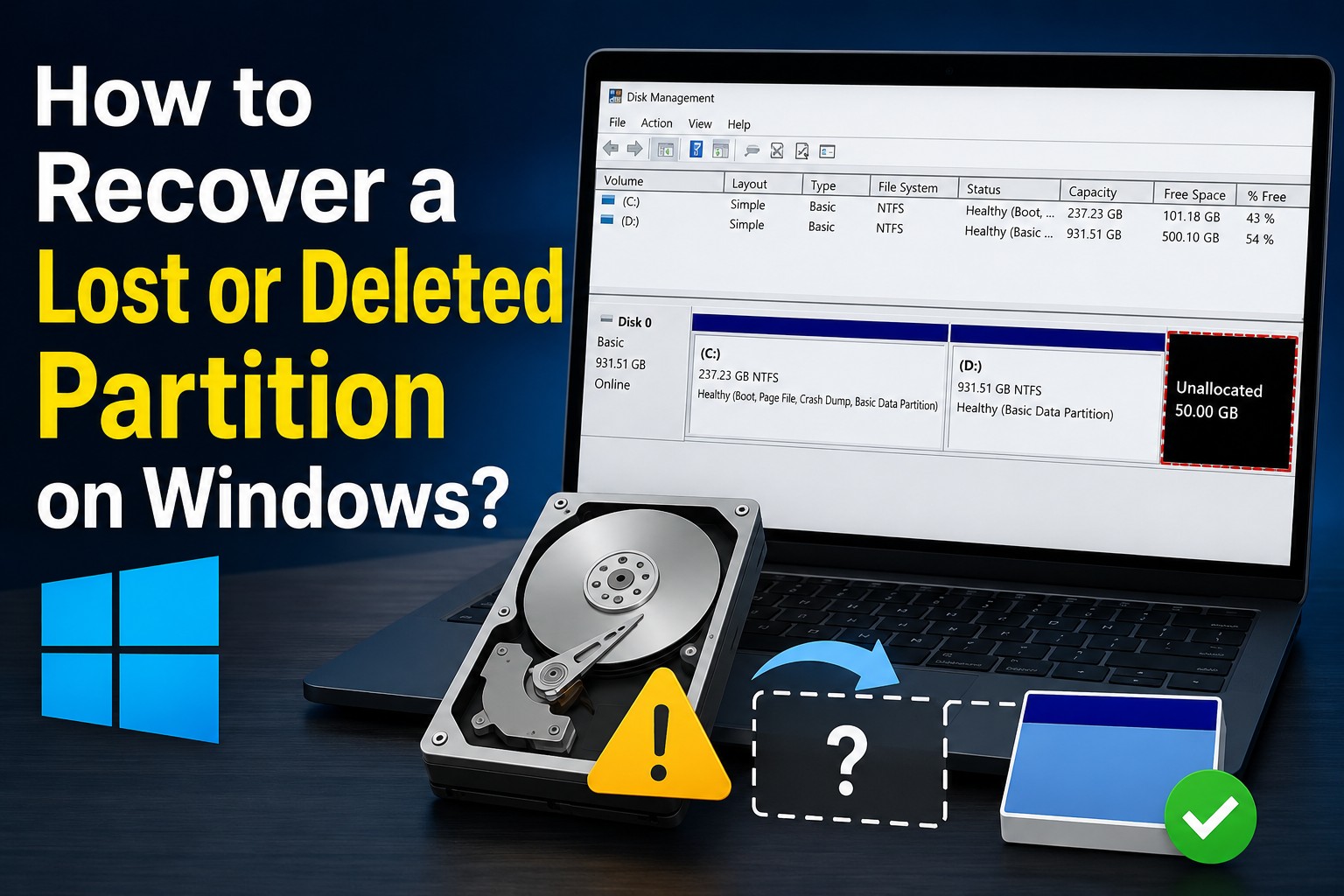
Losing a partition on your Windows PC can be distressing, especially if it contains valuable photos, videos, documents, or other important files. A missing partition generally appears as unallocated in Disk Management or disappears completely in File Explorer. Fortunately, several DIY methods and data recovery software are available online that can help you restore a lost or deleted partition.
This guide explains the common reasons for partition loss and quick methods on how to recover a lost or deleted partition on Windows. Let’s get started!
What is a Lost or Deleted Partition?
A partition is a logical section of a storage device that Windows treats as a separate drive, such as C:, D:, or E:. Each partition has its own file system and stores different types of data. A partition is considered:
- Lost: When your Windows PC fails to recognise it due to corruption, missing partition table entries, or file system issues.
- Deleted: When the partition entry is removed from the partition table, making the disk space appear as unallocated.
In both scenarios, the actual data often remains on the disk until it is overwritten.
Understanding Common Causes of Partition Loss
Identifying the exact reason for partition loss can help you determine the right recovery workaround. Some main reasons include:
- Accidental Partition Deletion: You may have accidentally deleted a partition while managing disks using Disk Management or third-party partition software.
- Partition Table Corruption: If the Master Boot Record (MBR) or GUID Partition Table (GPT) is damaged, it can make partitions inaccessible.
- Virus or Malware Attacks: Malicious programs like viruses or malware may corrupt partition information or damage the file system.
- Power Failure: Unexpected system shutdown during disk operations is also one of the main reasons why partition structures get corrupt or inaccessible.
- Disk Formatting: Formatting the wrong partition, especially without any backup, removes its file system and makes data inaccessible.
Signs That Your Partition Is Lost
Whether your partition is corrupt or even lost, you may encounter the following symptoms:
- A drive letter suddenly disappears.
- The partition is missing in File Explorer.
- Disk Management shows Unallocated Space.
- Windows asks you to format the drive.
- The partition displays as RAW instead of NTFS or FAT32.
- Error messages such as “Drive is inaccessible.”
Can I Recover Deleted Partition on Windows?
Yes. In many cases, your deleted partition can be easily restored. Usually, when a partition is deleted, it removes only its entry from the partition table rather than immediately erasing the stored files.
However, recovery depends on several factors, such as:
- Whether new data has overwritten the partition.
- The condition of the storage device.
- The recovery method used.
- Whether the drive has physical damage.
The sooner you proceed with a partition recovery workaround, the better it is to restore lost partitions.
How do I Recover Deleted Partition on Windows? [Quick Methods]
Now that you’re familiar with the reasons for your partition loss and common symptoms, it’s time to apply an adequate partition recovery workaround. You can go with the below methods one by one to restore your lost partition:
Method 01: Recover Using Partition Recovery Software
Let’s start with the simplest method first. If you are looking for an easy and direct approach to restore a lost partition, go with third-party partition recovery software. Tools like Stellar Data Recovery Professional are especially designed to recover your lost partition and retrieve your deleted files. You can use this software to recover data from lost, deleted, formatted, or inaccessible partitions on Windows PCs. This tool supports recovery of files deleted from HDDs, SSDs, USB flash drives, memory cards, and other storage devices.
Why Choose Stellar Data Recovery Professional?
This partition recovery software is known for several amazing features, such as:
- It supports NTFS, FAT32, exFAT, and other popular file systems.
- Performs both Quick Scan and Deep Scan for improved recovery results.
- Allows you to preview the recoverable results before saving them on your device.
- It can help you restore deleted files of various types, including photos, videos, documents, and many more.
- Supports recovery from various internal and external storage devices like HDDs, SD cards, USB drives, etc.
Here’s how to recover a lost or deleted partition on Windows using this software:
Step 1: Download and install the Stellar Data Recovery Professional software on your Windows PC. Launch the software and from the homepage, choose the type of file you need to restore and click Next to continue.
Step 2: On the Recover From screen, if the missing partition does not appear in the list of available drives, select the Can’t Find Drive option. Click Scan to begin the scanning process.
Step 3: Once the scan completes, a list of recoverable files or folders will appear on your screen. Click Recover to save them back to your PC.
Note: Save your recovered data at a different storage location to avoid overwriting.
Method 02: Assign a Drive Letter
If a partition suddenly disappears from File Explorer, it doesn’t always mean the data is lost. In some cases, the partition is still present but has become inaccessible due to a missing drive letter. In such cases, you can follow the below steps to assign a new drive letter to that partition:
- Press the Windows + X keys, then go to Disk Management.
- Locate and right-click on the partition that you need to restore.
- Select Change Drive Letter and Paths, then click Add.
- Assign a new drive letter from the drop-down and tap Ok.
If the partition becomes visible again, no further recovery is needed.
Method 03: Recover Partition Using Disk Management
Windows’ built-in Disk Management utility can help determine whether the partition still exists. All you have to do is:
- Press the Windows + R keys to launch the Run prompt.
- Now, type msc and press the Enter key.
- Locate the disk where the missing partition was earlier stored.
- Check its status: Healthy, RAW, Unallocated, or Offline.
If the partition still doesn’t appear, reconnect the drive or use professional partition recovery software to scan and recover the lost partition.
Wrapping Up
Recovering a lost or deleted partition may seem like a challenging task, but that’s not the case. Whether the partition disappeared due to accidental deletion, corruption, formatting, malware, or partition table damage, there are several effective ways to recover it. You can try DIY workarounds like assigning a new drive letter or using Windows built-in utilities such as Disk Management. If these methods fail or seem challenging, try third-party professional data recovery software like Stellar Data Recovery Professional.
The key to successful recovery is acting quickly. Avoid using the affected drive, do not format it, and recover data before attempting repairs. Maintaining regular backups, monitoring disk health, and using trusted disk management tools can also help prevent future partition loss and protect your valuable data.