

How to Recover Lost, Deleted, or Missing RAR Files in Windows 11/10
Part 1: Introduction – Lost Your RAR Files? Here’s What to Do
You try to open a project or an old folder, but the RAR file is missing, and you don’t know why. Since RAR files often contain many files, losing one can feel like losing a whole folder. In most cases, it isn’t gone forever.
When Windows deletes a file, it usually only removes its location, while the data stays on the drive until it’s overwritten. This is why it’s viable to recover deleted RAR files. This guide explains why RAR files disappear, when they can be recovered, proven ways to retrieve them, and tips to prevent future loss.
Key Takeaways
- RAR files can be lost due to deletion, formatting, crashes, or malware, but they are often still recoverable.
- First, check simple options like the Recycle Bin, Previous Versions, or backups before using advanced tools.
- If not found, recovery software like 4DDiG can deeply scan drives and restore deleted or formatted RAR files.
- Stop using the affected drive immediately to avoid overwriting lost data.
- Regular backups and safe file handling help prevent future loss of RAR files.
Part 2: Why RAR Files Disappear
RAR archives are single files, so unlike a folder of loose documents, a single accidental click or a corrupted sector can wipe out everything packed inside. Here are the most frequent reasons why RAR files disappear:
- Accidental deletion: Deleting the wrong file or using “Shift+Delete,” which bypasses the Recycle Bin.
- Formatting or partition mistakes: Formatting a drive or changing partitions that still contain important files.
- System crashes or file corruption: Power failures, sudden shutdowns, or unsafe device removal can damage or cause loss of files.
- Malware or software issues: Viruses, antivirus actions, or program crashes can unexpectedly delete or corrupt archive files.
Part 3: When Is RAR File Recovery Possible?
RAR recovery odds depend almost entirely on what happened after the file disappeared. Here are the scenarios where it’s viable to get your RAR files back:
- Still in the Recycle Bin: This is the best-case scenario. The file hasn’t actually been removed from the drive. It’s just been moved to a holding area, and restoring it takes seconds.
- Permanently deleted but not overwritten: If you used “Shift+Delete” or emptied the Recycle Bin, the file’s data usually still exists on the drive until new data is written to that same space. Recovery software can often pull it back.
- Lost due to formatting but recoverable: Formatting resets the file system’s index, not necessarily the underlying data. A deep scan can frequently rebuild and extract files that look “erased.”
Important warning: The moment you realize a RAR file is missing, stop saving new files, installing software, or downloading anything to that same drive. Every new write is a chance to overwrite the exact sectors holding your lost archive, and once that happens, no tool can bring it back.
Part 4: Proven Methods to Recover Deleted RAR Files on Windows
There’s no one solution to restore lost RAR files on Windows. The best RAR recovery method depends on how the file was lost. Start with simple options, such as checking the Recycle Bin or previous versions. If the file was permanently deleted, lost after formatting, or cannot be found, a data recovery tool can help.
For example, 4DDiG Data Recovery can scan drives in depth to find lost RAR files and recover them from PCs, USB drives, SD cards, and external hard drives. But before using 4DDiG, start by checking the Recycle Bin:
Fix 1: Restore RAR Files from the Recycle Bin
If you deleted the file normally, and not with “Shift+Delete,” this is the fastest fix and should always be your first stop. Here’s how to restore Win RAR files from the Recycle Bin:
Step 1: Open the “Recycle Bin” from your desktop. Use the search bar or sort by date deleted to find your RAR file.
Step 2: Right-click the file and select “Restore.” It will automatically return to its original folder.
Fix 2: Use Previous Versions or File History
If File History was already enabled before the file went missing, you may be able to retrieve an earlier snapshot of the folder that still contains it. But this only works if File History was active beforehand. Otherwise, it won’t help if you’re setting it up after the fact. Here’s how to use File History to restore a previous version of your RAR file:
Step 1: Open “File Explorer” and move to the folder that previously contained the RAR file.
Step 2: Right-click the folder (in Windows 11, you may need to click “Show more options” first).
Step 3: Select “Properties,” then the “Previous Versions tab,” or “Restore previous versions” directly, depending on your build.
Step 4: Pick a version from before the file disappeared and click “Restore,” or open it first to confirm the RAR file is actually inside.
Fix 3: Recover Deleted RAR Files with Data Recovery Software (Best Option)
When the Recycle Bin is empty and there’s no backup, a dedicated software like 4DDiG Data Recovery is by far the most dependable route. This is especially for RAR files lost to formatting, partition errors, or Shift+Delete.
Why 4DDiG Is Best for RAR Recovery:
- Supports many archive types, like RAR, ZIP, 7Z, TAR, ACE, ARJ, and more, so it can recover different compressed files.
- Can recover files deleted from the Recycle Bin, Shift+Delete, formatting, or drive crashes.
- Can also help fix corrupted or broken RAR/ZIP/7Z files so they can open again.
- Offers a very high success rate and uses advanced scanning and filters to quickly find specific files in large results.
- Offers support for both Windows and Mac and recovers 2000+ file types other than RAR.
- Let you check files before restoring to make sure they’re correct and usable.
- Simple scan-and-recover process, suitable even for beginners.
- Avoids overwriting existing data during recovery.
Step-By-Step Guide for Using 4DDiG:
Here’s how to restore Win RAR files with 4DDiG:
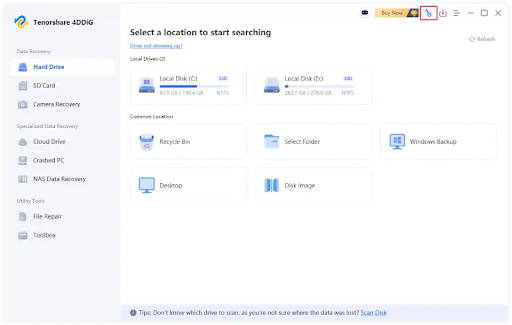
Step 1: Launch 4DDiG
Open 4DDiG on your computer and you’ll land on the main interface, which lists all available drives and storage locations.
Step 2: Select a Location
Choose the drive, partition, or folder where the RAR file used to be (e.g., the desktop, a specific local disk, or a connected USB drive). Choose “Archive” as the file type for scanning.
Step 3: Scan Your Device
Start the scan. 4DDiG will automatically scan the selected location. You can pause or stop the scan to filter results by file type (look for “Archive” or search the .rar extension directly).
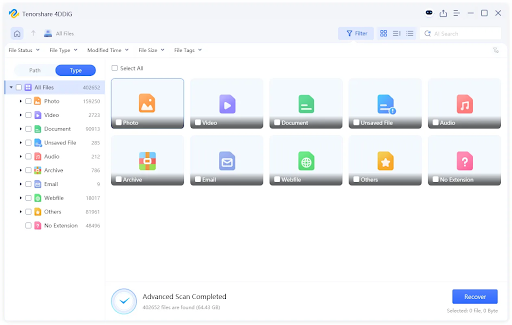
Step 4: Preview & Recover Data
Once scanning finishes, browse or search the results, and preview the recoverable files to confirm you’ve found the right RAR archive. Then, click “Recover” to restore lost RAR files in Windows. Save them to a different drive than the one you scanned.
Fix 4: Restore from Backup Storage
If you’ve been backing up your work, including your RAR files, to Windows Backup or cloud storage, even casually, this is worth checking. Maybe you’ll find your lost or deleted RAR files there. Here’s how to recover deleted RAR files from backup storage:
Step 1: Write “Settings” in the search menu on your computer. Then, open it. Choose “Accounts.” Tap “Windows Backup” if it was set up.
Step 2: If you have a backup in cloud storage, open your cloud storage app (OneDrive, Google Drive, or Dropbox) and check its trash or version history.
Step 3: Search for the RAR file by name within the backup or cloud folder structure. Download or restore it to your local drive once located.
Part 5: Tips to Avoid Losing RAR Files Again
There’s a high chance your RAR files could be lost or deleted again in the future due to a mishap, and recovery isn’t always feasible. Thus, you must take some concrete steps, like the following, to reduce that chance:
- Back up important compressed files regularly: Keep copies of critical RAR archives on a separate drive or cloud service, not just the original location
- Avoid shortcuts to permanent deletion: Think twice before using “Shift+Delete” on archives you might need again. Let them go to the “Recycle Bin” instead
- Keep antivirus protection active: This prevents malware from getting the chance to delete, quarantine, or corrupt your archives in the first place
- Store archives on multiple devices: A second copy of your RAR files on an external drive or NAS means one failure point doesn’t cost you everything
- Handle external drives properly: If you keep files on an external drive, including archives, always use “Eject” before unplugging USB drives or external HDDs to avoid corruption caused by improper disconnection.
Part 6: Final Words
Losing a RAR file doesn’t always mean it’s gone forever. Even if it was deleted, formatted, or removed with Shift+Delete, the data may still be on the drive. So, act quickly and avoid saving new data on that drive. First, check the Recycle Bin and Previous Versions to recover deleted RAR files.
If that doesn’t do the job, a tool like 4DDiG Data Recovery can perform a deep scan of the drive. It lets you selectively retrieve files and preview them before restoring them with high success. Keeping regular backups of your data, including RAR files, can also help prevent this problem in the future.